Workflow
Editing several photos
Opening several photos on a computer, selecting them, and what changes when several are selected.
Available on screens at least 768 pixels wide. On narrower screens, such as phones, one photo is open at a time.
Opening several photos
- Select several files in the file picker, or drop several files on the page.
- Add more with the add photos button in the top bar, or by dropping them on the board.
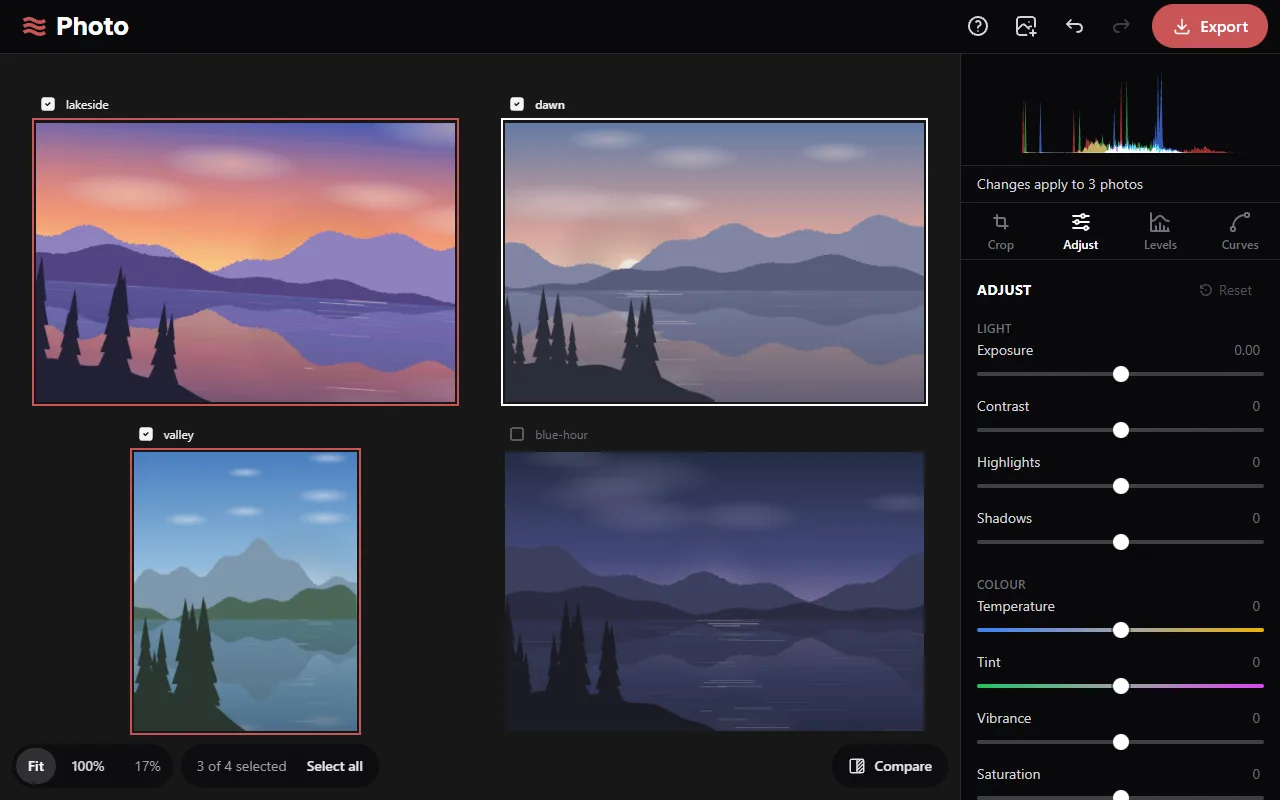
- Up to 30 photos can be open. They're arranged in a grid, with each file name above its photo.
Selecting
- Click a photo to select only that photo. It becomes the main photo, shown with a white outline. The tools show the main photo's settings.
- Shift-click or Ctrl-click (⌘-click on a Mac) a photo, or use the checkbox beside its name, to add it to the selection or remove it. Selected photos have a red outline.
- Select all, at the bottom of the board, or Ctrl A selects every photo. With every photo selected, Select one returns to only the main photo.
With more than one photo selected, the tools panel shows how many photos changes apply to.
Changes with several selected
A change to a setting is copied to the other selected photos. Their other settings don't change. For example, setting Exposure to +0.5 sets it on every selected photo and leaves their Contrast as it was. In Levels and Curves, each channel is copied as a whole.
Crop and rotate apply to each photo separately:
- Rotate and flip: each photo turns from its current orientation.
- Aspect ratio: each photo gets the ratio, with the largest crop of that shape.
- Straighten: each photo gets the same angle.
- Dragging the crop: each photo gets the same relative position and size, fitted to its own ratio and angle.
The Crop tab shows only the main photo. Reset applies to every selected photo, and undo reverts a change on all of them.
Moving around the board
- Double-click a photo to zoom to it. Double-click again, or press Fit, to show all photos.
- Scroll to zoom. Drag to pan while zoomed in.
Removing photos
Click the × beside a photo's name (shown on hover), or select photos and press Delete. Photos with edits that haven't been exported ask for confirmation first. Removing the last photo returns to the start screen.
Exporting
With several photos selected, Export saves them as one zip file.