Tools
Crop & rotate
Cropping, aspect ratios, rotating, flipping and straightening.
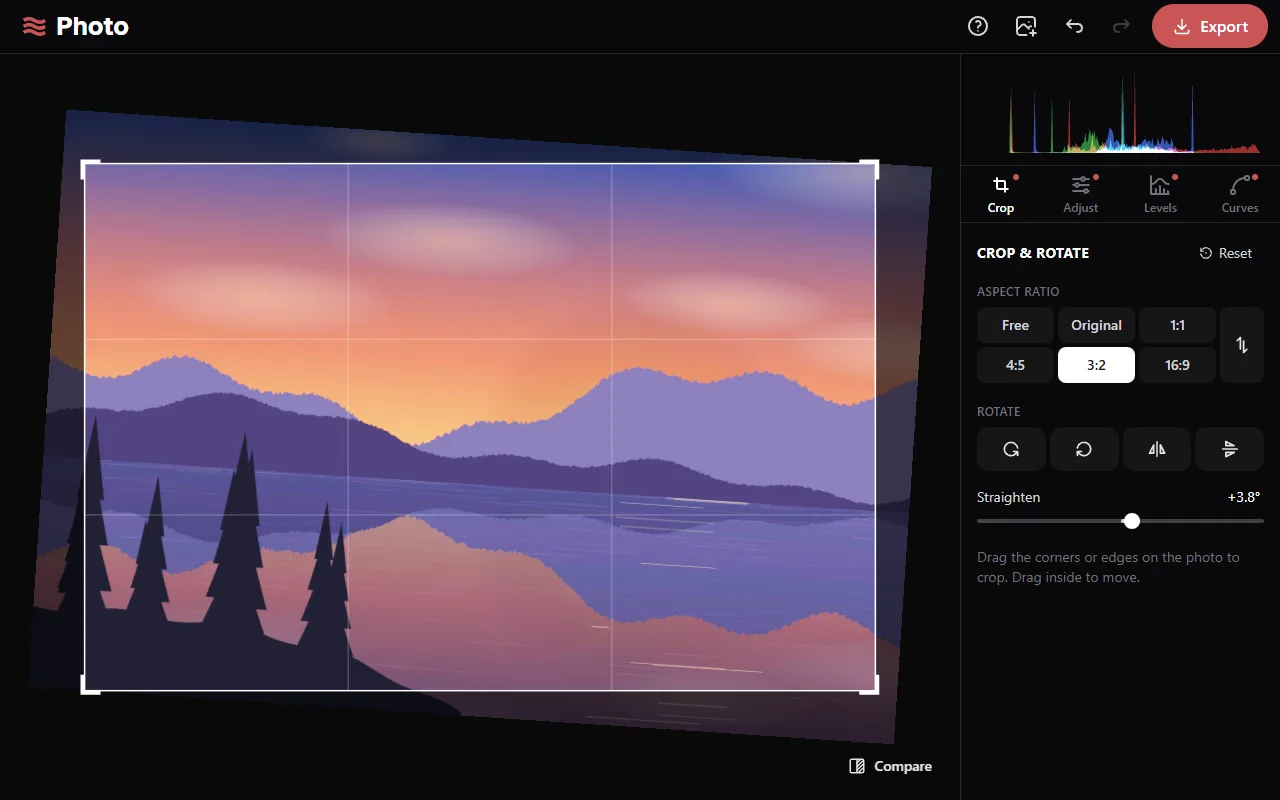
Cropping
- Open the Crop tab. The whole photo is shown.
- Drag a corner or an edge of the crop to resize it.
- Drag inside the crop to move it.
The crop stays within the photo. The grid lines divide it into thirds.
Aspect ratio
A ratio keeps the crop at a fixed shape while you resize it.
- Free: no fixed shape.
- Original: the photo's own shape.
- 1:1 (square), 4:5 (portrait), 3:2 and 16:9 (widescreen).
The ⇅ button swaps width and height, so 3:2 becomes 2:3. With a fixed ratio, only the corner handles are shown.
Rotating and flipping
- The rotate buttons turn the photo 90° left or right.
- The flip buttons mirror it horizontally or vertically.
Straightening
The Straighten slider rotates the photo by up to 45° either way. The crop shrinks so it stays inside the rotated photo, and grows back as the angle returns to 0°.
Reset restores the full, unrotated photo.