Basics
Getting started
Opening photos, the parts of the editor, viewing, undoing, and saving.
Opening a photo
- Press Open photo (Open photos on a computer) and choose a file.
- Drag a file onto the page.
- Paste a copied image with Ctrl V (⌘ V on a Mac).
JPEG, PNG and WebP open in all browsers. HEIC opens in Safari. To open several photos at once on a computer, see Editing several photos.
Parts of the editor
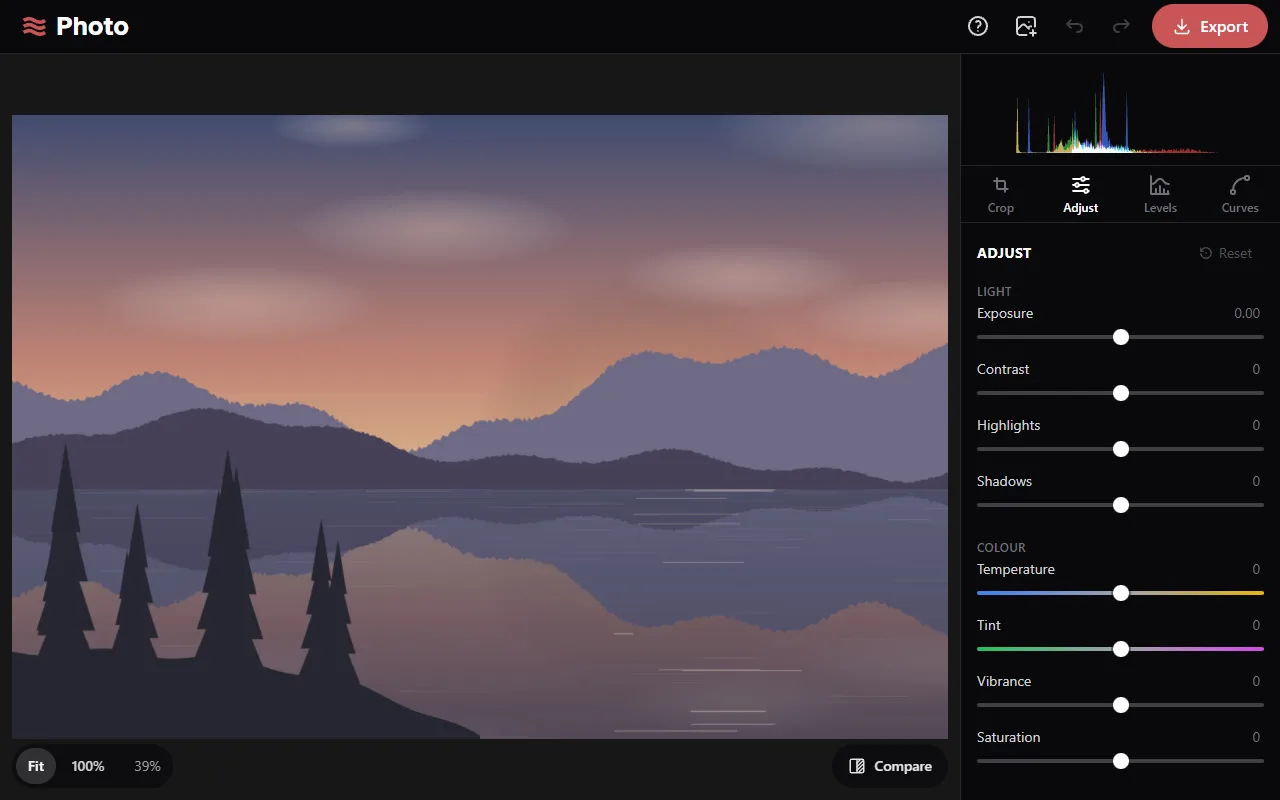
- Top bar: the guide, open or add photos, undo, redo, and Export.
- Tools: the Crop, Adjust, Levels and Curves tabs. A dot on a tab means that tool has changes.
- Histogram (computer only, above the tabs): the number of pixels at each brightness, from black on the left to white on the right.
Viewing
- Zoom: mouse wheel, trackpad or touch pinch, or the 100% button.
- Pan: drag the photo while zoomed in.
- Double-click the photo to switch between fitting the window and 100%.
- Compare: hold the Compare button or the \ key to show the photo without edits.
Undo and reset
- Undo with the left arrow in the top bar or Ctrl Z. Redo with the right arrow or Ctrl Shift Z.
- Double-click a slider to set it back to 0.
- Reset at the top of a tool clears that tool's changes.
The original file isn't changed.
Saving
Edits are kept only while the page is open, and are lost if the page is closed or reloaded. Use Export to save the edited photo. Leaving with edits that haven't been exported asks for confirmation first.