Tools
Adjust
The eight sliders in the Adjust tab and what each one changes.
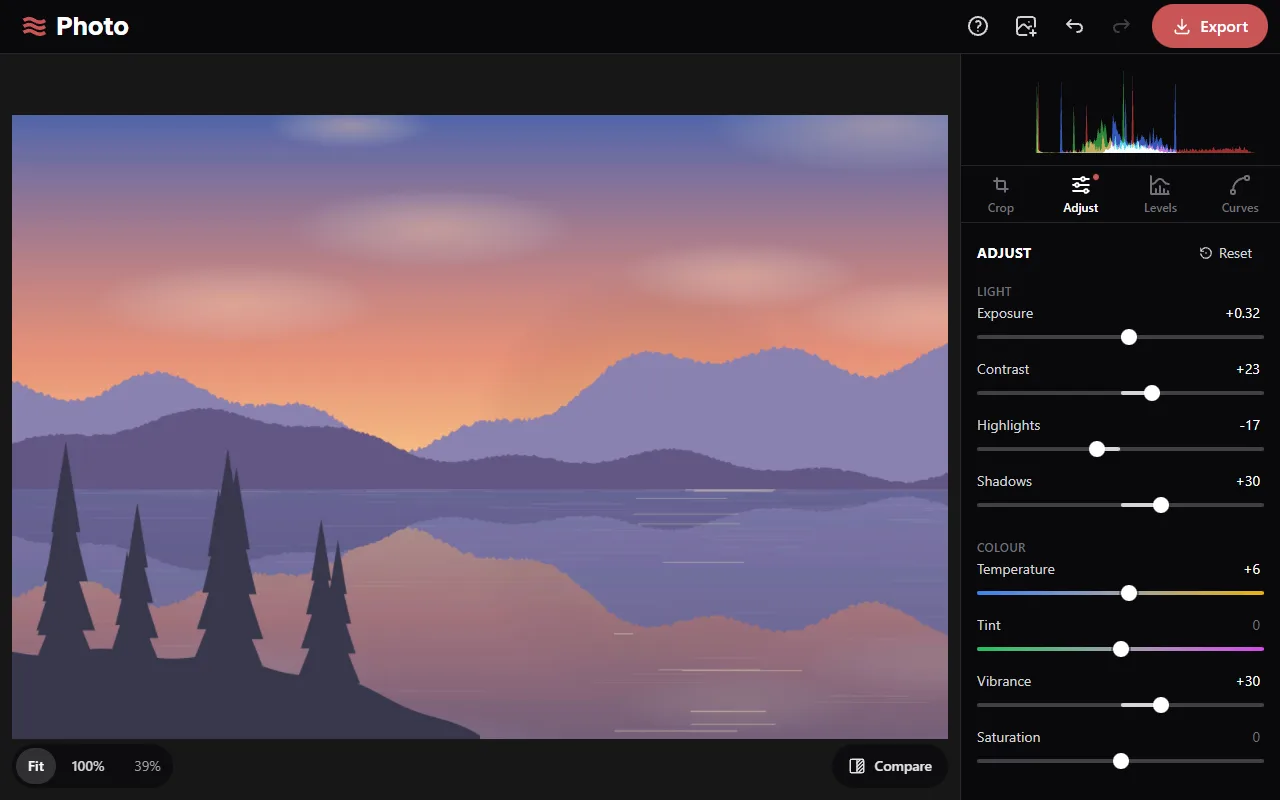
All sliders run from −100 to 100, except Exposure. Double-click a slider to set it back to 0.
Light
- Exposure: the brightness of the whole photo, in stops from −5 to +5. +1 doubles the light, −1 halves it.
- Contrast: the difference between dark and bright areas. Negative values reduce it.
- Highlights: the brightness of the brightest areas only.
- Shadows: the brightness of the darkest areas only.
Colour
- Temperature: shifts colours towards blue (left) or yellow (right).
- Tint: shifts colours towards green (left) or magenta (right).
- Vibrance: changes the strength of colours, with less effect on colours that are already strong.
- Saturation: changes the strength of all colours equally. −100 gives black and white.
Order of work
One way to work through the sliders:
- Exposure, for overall brightness.
- Highlights and Shadows, for the brightest and darkest areas.
- Contrast.
- Temperature and Tint, then Vibrance or Saturation.