Workflow
Export
Formats, quality, size and file names, for one photo or several.
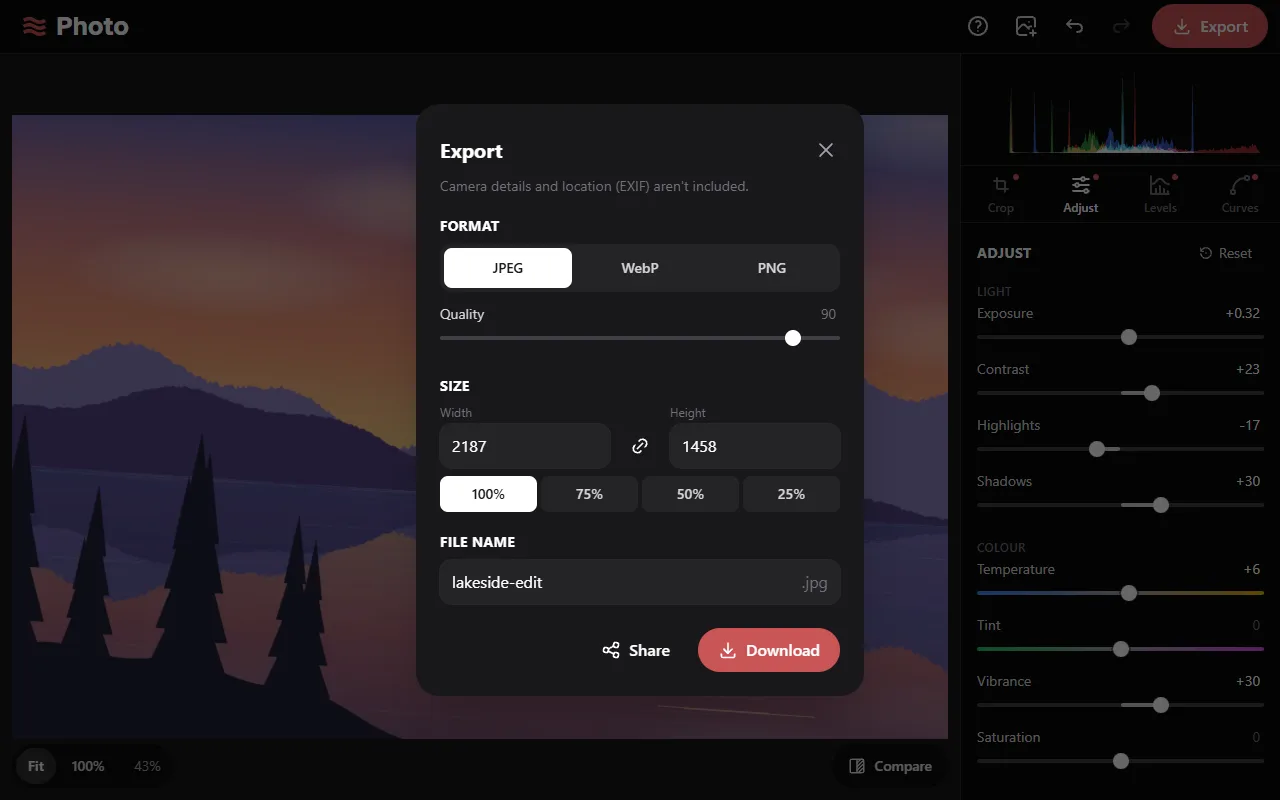
Exporting a photo
- Press Export in the top bar, or Ctrl S.
- Choose a format, size and file name.
- Press Download. On phones, Share opens the share sheet, which can save to the photo library.
The format and quality are remembered on this device.
Formats
| Format | Notes |
|---|---|
| JPEG | Small files, supported by almost all software. |
| WebP | Smaller than JPEG at similar quality. Some older software can't open it. Listed only if the browser can save it. |
| PNG | Lossless, and keeps transparent areas. Larger files. |
Quality (JPEG and WebP) sets the balance between file size and detail. Lower values give smaller files with more compression artefacts. The default is 90.
Size
Width and height are in pixels and refer to the cropped photo. With the link button on, changing one changes the other to keep the shape. The 100%, 75%, 50% and 25% buttons set the size relative to the crop.
Several photos
With several photos selected (see Editing several photos), Export saves them as one zip file. The size is a percentage, applied to each photo. Each file is named after its photo with -edit added, for example beach-edit.jpg.
Notes
- Exported files don't include camera details or location (EXIF).
- The original file isn't changed. Export always creates a new file.
- Safari on iPhone limits the size of images a web page can create, so very large exports can fail there. Choose a smaller size if that happens. If Safari asks to tap Share again, tap it again.
- After an export, leaving the page doesn't ask for confirmation until there are new edits.